hololive Dreams
Live options: note speed & timing
Start with note speed, then timing, then visibility. Recheck your values after changing devices or earphones.
Adjusting note speed when 5.00 feels crowded
If the initial 5.00 feels crowded, adjust note speed. At a slower speed, more upcoming notes remain visible, which can make dense patterns harder to read.
Examples: nanagi’s mobile guide suggests 9.0–10.0; Game8 suggests 10.00–10.50. These are personal starting points, not mandatory targets. Approach them gradually if you are unfamiliar with faster scrolling.
Slower: more notes visible
Faster: wider spacing
Spacing illustration: faster scrolling spreads notes out but leaves less reading time.
Adjusting the live options
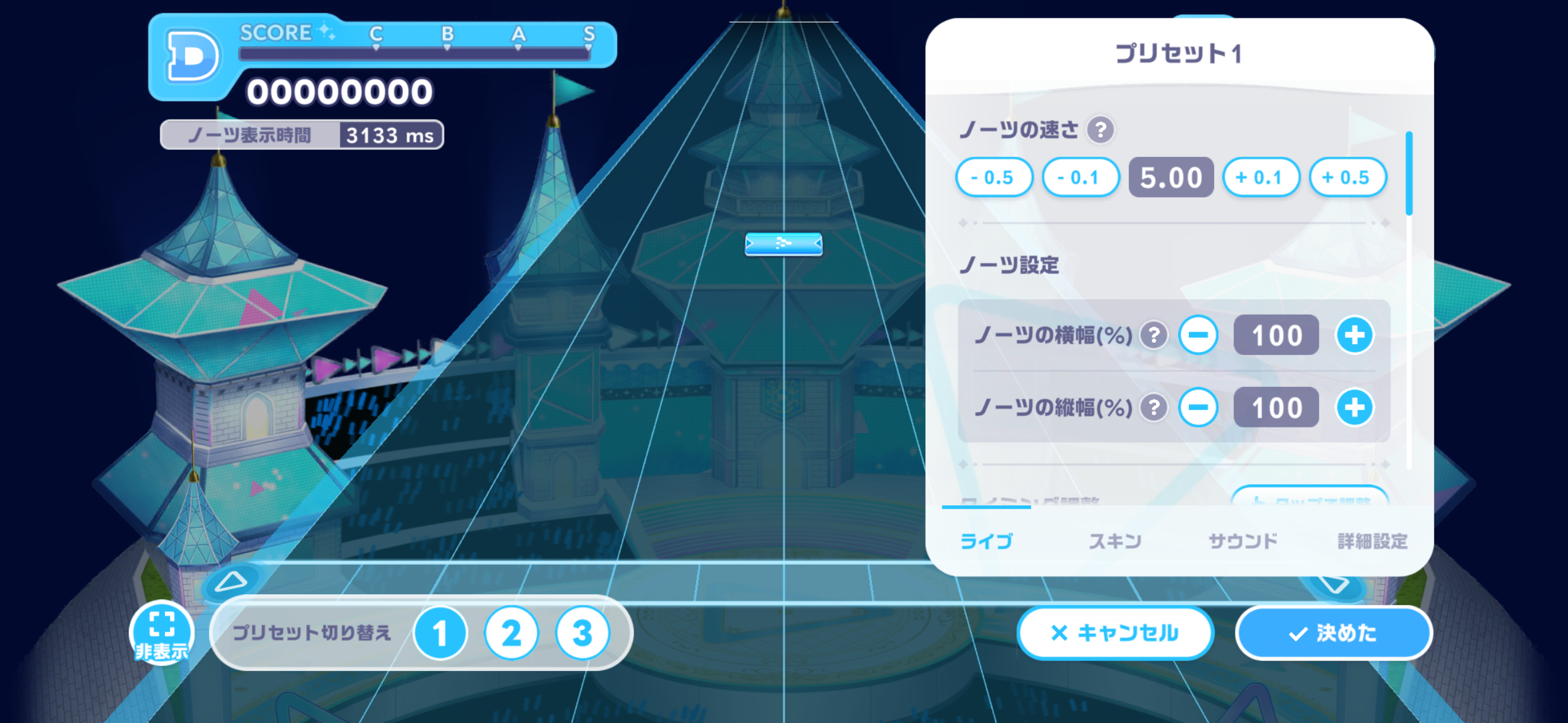
Find a range with ±0.5; refine with ±0.1
- Try a familiar chart at 5.00. Raise the speed if too many visible notes make their order difficult to read.
- Increase with +0.5 and compare the same chart. For example, 5.00 → 5.50 → 6.00. The song tempo and number of inputs stay the same.
- Lower it if you see notes too late to react. Once the range feels readable, fine-tune with ±0.1.
- Settle on a speed before calibrating timing. Change one variable at a time and compare misses and FAST/SLOW bias.
Width and height are separate controls. Use 100% as a reference and change one at a time, separately from speed.
Keep presets for different audio setups
Three presets are shown. For example, use preset 1 for speakers, 2 for wired earphones and 3 for another audio setup. Check song and hit-sound alignment after switching, then confirm with 決めた.
Where are the options?
Menu → Other → Live Options, or the gear on the pre-live team screen.
Settings by problem
| Option | How to adjust |
|---|---|
| Note speed | Raise it if notes overlap visually; lower it if you have too little reaction time. Compare on one familiar chart. |
| Timing calibration | Keep the same audio output, use TAP calibration, then inspect FAST/SLOW on a familiar song. Adjust one value at a time. |
| Lane brightness | Lower it when the background distracts you. Establish clear note visibility first; restore more scenery when desired. |
| Skill / FEVER effects | Reduce or disable effects if you lose notes or see stutter during activation. |
| Note dimensions | Increase size if small notes are hard to see, but avoid making adjacent notes look joined. |
| Lane width / dividers | Match your comfortable reach and screen width. Check narrow notes after changing dividers. |
| Judgment guides | Enable FAST/SLOW to diagnose timing. Move the judgment text if it covers incoming notes. |
| Audio / connection | Use separate presets for speaker, wired and Bluetooth audio. Recheck timing after switching outputs. |
| Orientation / graphics | Check orientation lock on mobile. For unstable performance, reduce graphics and effects and check heat or power-saving settings. |
Compare three runs of the same chart
- Run 1: record misses and FAST/SLOW before changing anything.
- Run 2: change just one setting.
- Run 3: repeat with the same values; save the preset if it helps.
When text or warnings obscure notes
Judgement position and display type
Move judgement text away from incoming notes. Choose fixed-centre or lane-relative display, then place FAST/SLOW above or below the judgement text. Compare the options on the same familiar chart.
Low-life alert effect
If the warning distracts you, compare a run with the low-life alert effect turned off. This removes the visual warning; it does not restore life.
These options are documented in the official Ver.1.2.0 update. Their current in-game screen positions have not been rechecked.
Check the controls too
References & image credits
Open reference list (5)
English explanations are editorial translations. © COVER / © QualiArts, Inc.